
Introduction
Earlier chapters showed how easy it is to use components from different frameworks in Astro, but how do you manage the state inside those components? Let’s dive into the world of global state management.
Passing state between different components
Some UI frameworks provide a way to create a context for managing state, but because Astro renders pages using “island hydration” (partial hydration), that approach won’t work.
Astro’s recommended solution is: Nano Stores.
Why Nano Stores?
- It’s tiny (under 1 KB).
- Framework-agnostic, so it can integrate state across components and frameworks.
What? Another new library to learn? From my brief experience it’s not much different from other state managers. With a basic understanding of JavaScript you can pick it up quickly. Below is a small example showing how to share state between Vue and React.
Counter example
Problem definition
We have two counter components: CounterVue.vue and CounterReact.jsx. We want to use Nano Stores so these two components can share state.
Step 1: Install the packages
npx astro add reactnpx astro add vuenpm install nanostores @nanostores/reactnpm install nanostores @nanostores/vueStep 1: Create the store
Create a stores folder and add a counter.js file. Using the atom helper, we can store the state there and export it for use in other components.
import { atom } from 'nanostores';
const counter = atom({ value: 1 });const increaseCounter = () => counter.set({ value: counter.get().value + 1 });const decreaseCounter = () => {  counter.set({ value: counter.get().value - 1 });};
export { counter, increaseCounter, decreaseCounter };
Step 2: Write the individual components
import { useStore } from '@nanostores/react';import { counter, increaseCounter, decreaseCounter } from '../stores/counter';
export default function CounterReact() {  const count = useStore(counter);
return ( <div style={{ border: '1px solid blue' }}> <button onClick={decreaseCounter}>-</button> <div>{count.value}</div> <button onClick={increaseCounter}>+</button> <p>React Component</p> </div> );}<script setup>import { useStore } from '@nanostores/vue';import { counter, increaseCounter, decreaseCounter } from '../stores/counter';
const count = useStore(counter);</script>
<template> <div style="border: 1px solid green"> <button @click="decreaseCounter">-</button> <div>{{ count.value }}</div> <button @click="increaseCounter">+</button> <p>Vue Component</p> </div></template>Step 3: Import the components
---import CounterReact from '../components/CounterReact';import CounterVue from '../components/CounterVue.vue';---
<div class="container">  <CounterReact client:load />  <CounterVue client:load /></div>
<style>  .container {    display: flex;    padding: 2rem;    gap: 1rem;  }</style>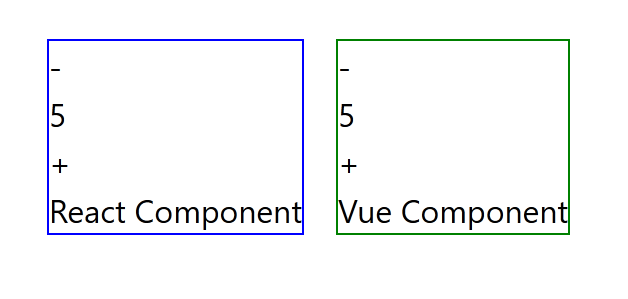
This way, the state and methods from two different frameworks can work together smoothly.
Other alternatives?
You can consider some “simple” approaches, such as using custom browser events for communication between components, or rely on solutions provided by each framework:
Conclusion
Today’s example shows how to handle state across different frameworks in Astro. For mostly static content websites, you rarely need very complex client-side state management, so it’s nice to have a simple package to integrate this functionality.
Further reading
- Share State Between Islands - Astro DOCS
- The easiest way to handle app state - Awesome
- Simpler ReactJS global state Nano Stores - bholmesdev
- Day11 - 全域狀態管理 - Same article cross-posted on iThome Ironman contest