Real use case of intersection observer: Table of Contents
Introduction
While recently building a Table of Contents feature, I found it to be an ideal use case for Intersection Observer: observing specific elements to automatically update the active TOC item.
Previously, this might have required listening for page scroll events and using getBoundingClientRect to determine whether an element had left the viewport. With the introduction of an API specifically designed to detect when elements enter the viewport, this functionality has become much easier to implement.
If you are interested in comparing the old and new approaches, see Use Intersection Observer instead of Scroll Events - Jonathan Lau, which provides a detailed comparison.
| Feature | Intersection Observer | Scroll Event Listener + getBoundingClientRect |
|---|---|---|
| Main thread | Runs outside the main thread without blocking other work | Runs on the main thread and can block other work |
| Performance overhead | Efficiently tracks element visibility, running only when necessary | Checks element positions on every scroll, potentially consuming more resources |
| Ease of use | Purpose-built for detecting when elements enter the viewport, with a powerful, simple interface | Provides lower-level information about individual elements on screen, potentially requiring more complex calculations |
This is why I preferred to start with Intersection Observer, a relatively mature API that has been available for some time. However, I ran into a few unexpected issues along the way.
The Problem
Build a feature that generates a table of contents from headings inside a specific element and applies an active style to the appropriate item based on the scroll position:
- Automatically generate a list of TOC links from the current article and display it in the sidebar
- Automatically update the active TOC item when the user scrolls to the corresponding section
- Scroll to the corresponding position when the user clicks a TOC link
<main> <div> <h1>TOC DEMO</h1> <div> <section> <h2>Title One</h2> <p>...</p> </section> <section> <h2>Title Two</h2> <p>...</p> </section> <section> <h2>Title Three</h2> <p>...</p> </section> <section> <h2>Title Four</h2> <p>...</p> </section> </div> </div> <aside> <ul></ul> </aside></main>The Approach
An automatically updating table of contents is a very common UI pattern that most people have used, so its requirements are rarely described in detail. But once you dig into it, you discover plenty of details to consider, such as:
- How should multiple nested heading sections be handled?
- Can only one item be active? If so, when multiple sections qualify as active, how do we choose the most relevant one?
- What does it mean to scroll into a section? What does it mean to leave one? (Does the entire section, or half of it, need to enter or leave the viewport?)
- How should clicking a link scroll to the corresponding position? And what exactly is that position?
These unexpected questions directly affect the user experience. You can end up with code that runs without errors but delivers a poor experience. For example, clicking a TOC link might scroll to an unexpected position, or the active TOC item might not match what the user expects. Because the TOC is generated dynamically, edge cases can also be difficult to discover. It is therefore better to discuss its expected behavior before implementing it. I started by defining the requirements as follows:
- Only one level of heading sections needs to be detected
- Only one item can be active
- The first heading to become active takes precedence (after scrolling into
區塊 1and then into區塊 2, while still區塊 1 當中,區塊 1remains active because it became active first) - Entering and leaving a section are defined by the section fully entering and leaving the viewport
- Clicking a link scrolls the section to the top of the viewport, with
1remof extra space
These are the initial requirements. We will deal with some tricky edge cases as they emerge during implementation.
Step 1: Generate the Table of Contents
First, mark the TOC-related elements (I use data attributes here) so that JavaScript can easily find and manipulate them later using querySelector.
<main> <div> <h1>TOC DEMO</h1> <div> <section data-toc-section> <h2>Title One</h2> <p>...</p> </section> <!-- ... --> </div> </div> <aside> <ul data-toc></ul> </aside></main>Next, create a generateToc function that accepts the target TOC element to populate and the sections to observe.
function generateToc(tocElement: HTMLUListElement, sectionElements: NodeListOf<HTMLElement>) {  sectionElements.forEach(function (section, index) {    // Add a corresponding id to each section    const sectionId = 'toc' + (index + 1);    section.setAttribute('id', sectionId);
    // Create a TOC link element for the existing section    const tocLink = document.createElement('a');    tocLink.setAttribute('href', '#' + sectionId);    tocLink.setAttribute('data-id', sectionId);    const sectionTitle = section.querySelector('h2');    if (sectionTitle) {      tocLink.textContent = sectionTitle.textContent;    }
    // Create a TOC item element    const tocItem = document.createElement('li');    tocItem.appendChild(tocLink);
    // Insert the TOC item into the TOC element    tocElement.appendChild(tocItem);  });}
const tocElement = document.querySelector<HTMLUListElement>('[data-toc]');const targetSectionElements = document.querySelectorAll<HTMLElement>('[data-toc-section]');if (tocElement) {  generateToc(tocElement, targetSectionElements);}
This automatically detects the current article content and generates a corresponding table of contents. Using <a> tags with # fragment navigation also lets a link click jump to a specific id as its target.
Step 2: Observe Sections Entering and Leaving the Viewport and Activate the Appropriate Item
First, define activeTocs to track the currently active sections:
let activeTocs: string[] = [];After generating the TOC, we can attach an Intersection Observer to each section. The initIntersectionObserverForToc function updates the active TOC item by observing sections entering and leaving the viewport.
/** * Detect sections entering or leaving the viewport * 1. Inside the viewport: add the section id to activeTocIds * 2. Outside the viewport: remove the section id from activeTocIds */function initIntersectionObserverForToc(sectionElements: NodeListOf<HTMLElement>) {  sectionElements.forEach((section) =>    new IntersectionObserver((entries) => {      entries.forEach((entry) => {        const targetSectionId = entry.target.getAttribute('id');        if (!targetSectionId) return;        if (entry.isIntersecting) {          activeTocIds.push(targetSectionId);        } else {          const targetSectionIdIndex = activeTocIds.indexOf(targetSectionId);          const isTargetSectionId = targetSectionIdIndex !== -1;          if (isTargetSectionId) {            activeTocIds.splice(targetSectionIdIndex, 1);          }        }        updateActiveTocItem();      });    }).observe(section),  );}
/** * Update the active state in the TOC DOM */function updateActiveTocItem() {  document.querySelectorAll('[data-toc] a').forEach((tocItem) => {    tocItem.classList.remove('active');  });
  if (activeTocIds.length > 0) {    const firstActiveId = activeTocIds[0];    document.querySelectorAll('[data-toc] a').forEach((tocItem) => {      if (tocItem.getAttribute('href') === `#${firstActiveId}`) {        tocItem.classList.add('active');      }    });  }}
const tocElement = document.querySelector<HTMLUListElement>('[data-toc]');const targetSectionElements = document.querySelectorAll<HTMLElement>('[data-toc-section]');if (tocElement) {  generateToc(tocElement, targetSectionElements);  initIntersectionObserverForToc(targetSectionElements);}
Step 3: Refine Active Section Detection
The current logic is this: when multiple sections are active, the first one to become active takes precedence, since only one active item can be displayed.
Consider scrolling into A and then B. After scrolling for a while, B might still be on screen and continue to hold the active state. Although this follows the activation rules, it may highlight a less relevant item. To choose the most relevant section, we should calculate how much of each section is visible. The threshold option configures the observer to trigger when visibility reaches specific proportions. In short, it accepts an array of values from 0 ~ 1, and the observer callback runs when one of those proportions is reached:
Next, let us add this setting and create a new function, updateActiveTocWithRatio, to update the active TOC item.
const targetSectionId = entry.target.getAttribute('id');
new IntersectionObserver(  (entries) => {    entries.forEach((entry) => {      if (isSectionVisible) {        // Update each section's visibility ratio in activeTocIds        updateActiveTocWithRatio(targetSectionId, entry.intersectionRatio);      } else {        // ...      }    });  },  {    threshold: [0, 0.1, 0.3, 0.5, 0.7, 0.9, 1], // Set thresholds from 0% to 100%  },).observe(section);
Now, whenever a section enters the viewport and reaches a specified threshold, the following function runs. We check whether it already exists in activeTocIds: if it does, we update its ratio; otherwise, we add a new section record. Sections with higher visibility ratios take priority as the active item.
function updateActiveTocWithRatio(sectionId, ratio) { const existingItemIndex = activeTocIds.findIndex((item) => item.id === sectionId); // 1. Section record exists = update its ratio // 2. Section record does not exist = add a new record if (existingItemIndex === -1) { activeTocIds.push({ id: sectionId, ratio }); } else { activeTocIds[existingItemIndex].ratio = ratio; } // Move the section with the highest ratio to the front activeTocIds.sort((a, b) => b.ratio - a.ratio); updateActiveTocItem();}Styling: Add Smooth Scrolling and Space Between the Target Section and the Viewport
Smooth scrolling is easy to implement with the CSS scroll-behavior property. We can also check whether the user prefers reduced motion and disable the animation accordingly.
html {  scroll-behavior: smooth;}
@media (prefers-reduced-motion: reduce) {  html {    scroll-behavior: auto;  }}
Although # fragment navigation automatically scrolls the page to the corresponding section, it aligns the top of that section with the top of the viewport. To adjust the scroll target position, consider the CSS scroll-margin-top property, which lets you leave some space between the target and the top of the viewport.
.section { scroll-margin-top: 1rem;}Be especially careful when the page has a navigation bar with a fixed layout, as it may obscure the section. In that case, leave more space so the navigation bar does not cover the section after scrolling.
I usually store the height of the fixed element at the top of the page (typically the navigation bar) in a CSS variable.
:root {  --nav-height: 80px;}
.section {  scroll-margin-top: calc(var(--nav-height) + 1rem);}
Also account for changes in the space required above the scroll target at different screen sizes (for example, a change in navigation bar height may require more space above each heading). If the navigation bar can expand and collapse, you may even need JavaScript to update the scroll-margin-top value for each section.
Debugging: Monitor Data Changes
function createDebugDisplay() {  const debugDisplay = document.createElement('div');  debugDisplay.id = 'debug-display';  debugDisplay.style.cssText = `    position: fixed;    top: 10px;    left: 10px;    background-color: rgba(0, 0, 0, 0.7);    color: white;    padding: 10px;    border-radius: 5px;    font-family: monospace;    font-size: 12px;    z-index: 9999;    max-height: 80vh;    overflow-y: auto;  `;  document.body.insertBefore(debugDisplay, document.body.firstChild);  return debugDisplay;}
function updateDebugDisplay() {  const debugDisplay = document.getElementById('debug-display') || createDebugDisplay();  debugDisplay.innerHTML =    '<h3>ActiveTocs:</h3>' +    activeTocs.map((activeToc) => `<div>ID: ${activeToc.id}, ratio: ${activeToc.ratio}</div>`).join('');}
See the Pen Basic - Real use case of intersection observer: Table of Contents by Riceball (@riecball) on CodePen.
Validation
Oversized Sections Stop Updates, Leaving the Previous Item Active
An edge case is particularly likely when entering or leaving sections larger than the viewport. If a section is larger than the viewport, it may fail to trigger observer updates. For background, see the discussion: How should larger-than-viewport-dimension targets be handled.
My understanding of Intersection Observer, and the examples I had seen, always involved simple, small elements on screen. You could set a threshold to trigger a callback once a certain proportion of the element was visible. But I had never considered what happens when the element is larger than the viewport. Could the ratio stop increasing partway through scrolling? After all, the viewport has a finite size.
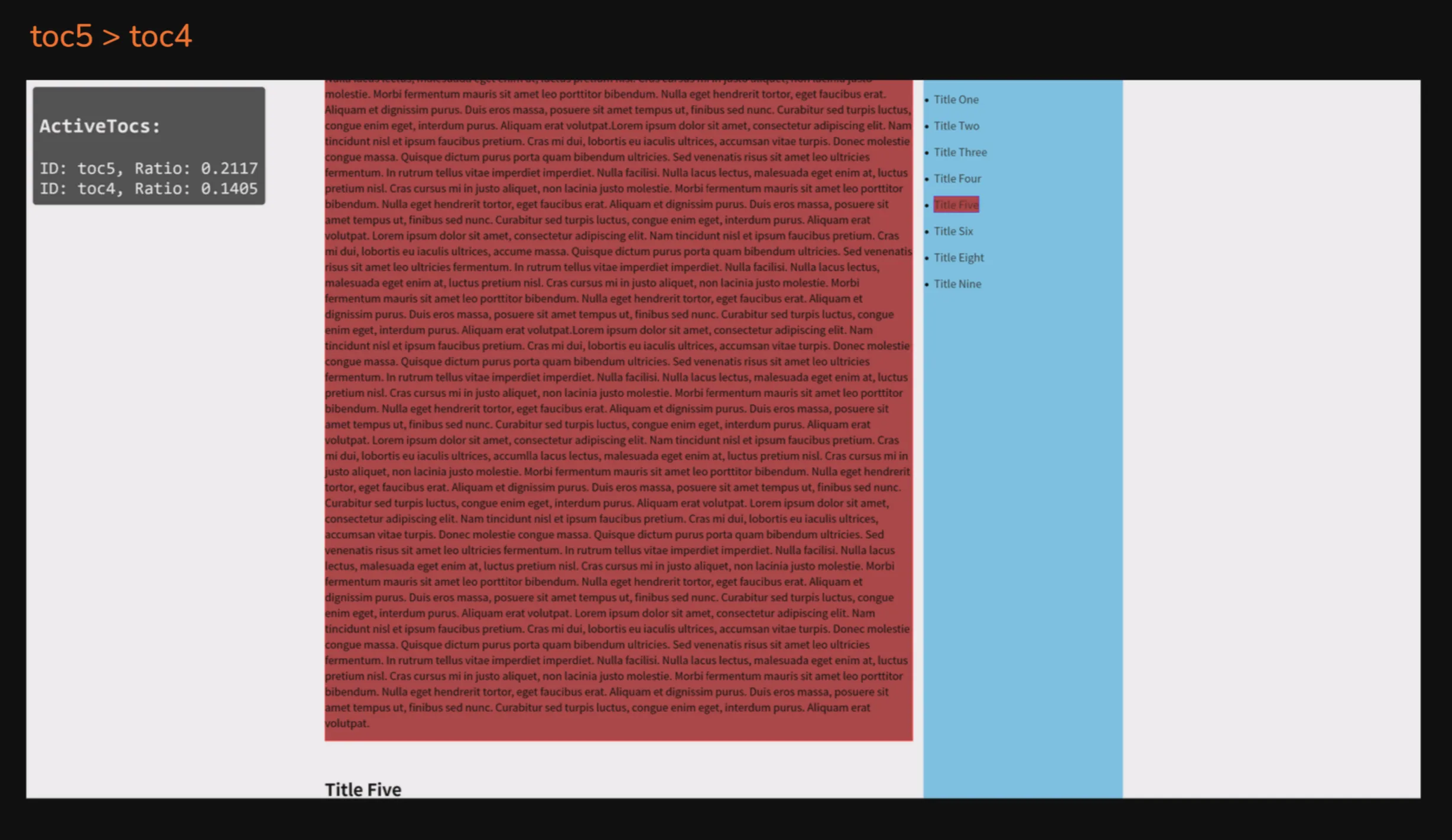
A simulation reveals that when a section is larger than the viewport, its observer may trigger only on entry and exit, with no callbacks in between. As a result, if the final triggered ratio of the section preceding the oversized section is higher than that of the oversized section, the active item gets stuck on the previous result until the oversized section leaves the viewport 😅.
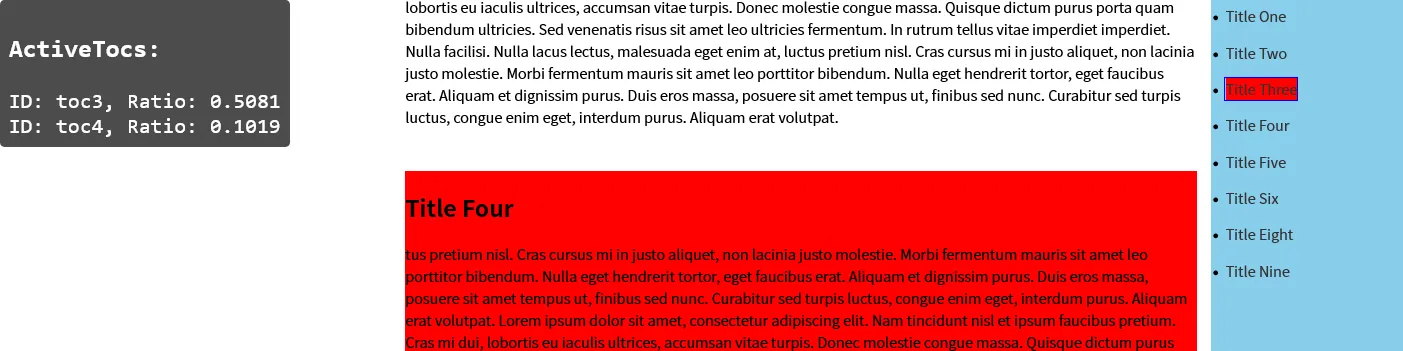
Since this behavior—sections larger than the viewport cannot provide the desired ratio updates and may trigger only on entry and exit—is expected behavior for Intersection Observer, I eventually realized I needed to fall back to the more flexible old approach: inspect each section on every scroll and calculate the proportion currently visible:
if (tocElement) { generateToc(tocElement, targetSectionElements); window.addEventListener('scroll', updateVisibleSections); window.addEventListener('resize', updateVisibleSections); updateVisibleSections();}function updateVisibleSections() { const windowHeight = window.innerHeight;
targetSectionElements.forEach((section) => { const rect = section.getBoundingClientRect(); const sectionId = section.getAttribute('id'); if (!sectionId) return;
// Visible height in the viewport = section bottom relative to the viewport top, capped at the viewport height - section top relative to the viewport top, clamped to at least 0 const visibleHeight = Math.min(rect.bottom, windowHeight) - Math.max(rect.top, 0); // Visible height in the viewport / element height = proportion of the element visible const elementInViewportRatio = visibleHeight / rect.height;
if (elementInViewportRatio > 0) { updateActiveTocWithRatio(sectionId, elementInViewportRatio); } else { const targetSectionIdIndex = activeTocs.findIndex((toc) => toc.id === sectionId); if (targetSectionIdIndex !== -1) { activeTocs.splice(targetSectionIdIndex, 1); } } });
updateActiveTocItem();}Finally, consider throttling the event handler and remember to remove event listeners when they are no longer needed. This avoids unnecessary calculations and improves performance.
A Consideration: The Most Visible Section Is Not Necessarily the Most Relevant
The threshold in Intersection Observer triggers only when a certain proportion of an element is visible. But are those proportions equivalent across sections? For example, if section A is 10px tall, scrolling through 10% of it requires only 1px of movement. If section B is 1000px tall, scrolling through 10% requires 100px.
This means sections A and B need different amounts of visible content to become active (1px and 100px). However, users are more likely to judge relevance by the proportion of the viewport occupied by an element. For example, with a 1000px viewport, a section might be considered relevant only once it occupies more than 10% of the viewport, or 100px. In this case, A becomes active too early.
Does that mean we should base activation entirely on the proportion of the viewport occupied by an element? Clearly not! Some elements are so small that they would never become active under that rule. I ultimately settled on the following approach:
- When an element enters the viewport, determine activation based on the proportion of the viewport it occupies
- Once an element is fully within the viewport, give it the highest activation priority
- Among elements with the highest activation priority, give precedence to the most recently added one
- As an element leaves the viewport, remove its highest-priority status and determine activation based on the proportion of the viewport it occupies
This only requires a little extra logic in updateVisibleSections:
function updateVisibleSections() {  const windowHeight = window.innerHeight;
  targetSectionElements.forEach((section) => {    const rect = section.getBoundingClientRect();    const sectionId = section.getAttribute('id');    if (!sectionId) return;
    const visibleHeight = Math.min(rect.bottom, windowHeight) - Math.max(rect.top, 0);    const elementInViewportRatio = visibleHeight / windowHeight;    const elementDisplayedRatio = visibleHeight / rect.height;
    if (elementInViewportRatio > 0) {      if (elementDisplayedRatio === 1) {        updateActiveTocWithRatio(sectionId, 1);      } else {        updateActiveTocWithRatio(sectionId, elementInViewportRatio);      }    } else {      const targetSectionIdIndex = activeTocs.findIndex((toc) => toc.id === sectionId);      if (targetSectionIdIndex !== -1) {        activeTocs.splice(targetSectionIdIndex, 1);      }    }  });  updateActiveTocItem();}
To give precedence to the most recently added highest-priority item, we can record a timestamp when an item is registered and update the ratio-sorting logic. When ratios are equal, the registration time determines which item becomes active.
function updateActiveTocWithRatio(sectionId: string, ratio: number) {  const existingItemIndex = activeTocs.findIndex((item) => item.id === sectionId);  if (existingItemIndex === -1) {    activeTocs.push({ id: sectionId, ratio, timeStamp: Date.now() });  } else {    activeTocs[existingItemIndex].ratio = ratio;  }
  activeTocs.sort((a, b) => {    if (a.ratio === b.ratio) {      return b.timeStamp - a.timeStamp;    }    return b.ratio - a.ratio;  });
  updateActiveTocItem();}
A Consideration: Clicking a Section Link May Not Leave the Expected Section Active
Currently, the active item is determined by the proportion of the viewport occupied by each section, with registration time breaking ties. However, scrolling after a click can still trigger a different active item. This can confuse users: they clicked A, but after scrolling, the later section C becomes active.
My approach is to add another variable, forceActiveTocId, and, when generating
// Attach a click handler when initializing TocLink to ensure `forceActiveTocId` is set on clicktocLink.addEventListener('click', (e) => {  forceActiveTocId = sectionId;  const activeToc = activeTocs.find((item) => item.id === sectionId);  if (activeToc) {    activeToc.timeStamp = Date.now();  }  activeTocs = reorderActiveToc(activeTocs);  updateActiveTocItem();  updateDebugDisplay();});
// Extract TOC sorting into a dedicated functionfunction reorderActiveToc(activeTocs: activeToc[]) {  return [...activeTocs].sort((a, b) => {    // If a is the forced active item, move it to the front    if (a.id === forceActiveTocId) return -1;    if (a.ratio === b.ratio) {      return b.timeStamp - a.timeStamp;    }    return b.ratio - a.ratio;  });}
See the Pen final - Real use case of intersection observer: Table of Contents by Riceball (@riecball) on CodePen.
Conclusion
In short, a good TOC should:
- Scroll to an appropriate position when a link is clicked
- Use active styling to reflect the current scroll position
If your TOC is designed to have only one active item, you will likely encounter some user experience issues that are technically difficult to resolve. You will need additional rules to refine the experience. For example, when scrolling toward the last section, you might reach the bottom of the page and be unable to scroll farther, leaving the bottom section unable to become active. (This brings us back to the question: when multiple sections qualify as active, which one is most relevant to the user?)
I think the result at this point is already a pretty good TOC. You can refine it further and add your own rules to suit your needs.